TCL televisions are compatible with a wide range of universal remote models, but a successful pairing process depends on using the correct brand-specific code or pairing technique.
Here is a full list of TCL remote control codes, organized by brand and digit length. Find three ways to programme the remote below!
In This Article:
3-Digit Universal Remote Codes For TCL Roku TV
| Universal Remote Control Brand | Remote Code for TCL TV |
| GE | 081, 020, 135 |
| Dish | 601, 334, 645, 387, 831, 533, 751, 627, 535, 805, 333, 551, 666, 522, 556, 650, 749, 824, 902, 651, 523, 864, 503, 888, 863, 165 |
| Spectrum | 749, 705, 096, 251, 081, 268, 387, 031 |
4-Digit TCL Universal Remote Codes
| Universal Remote Control Brand | Remote Code For TCL TVs |
| Dish | 1756, 0178, 0706, 2434, 2049, 0885, 4398, 3183 |
| Comcast | 1756 |
| One For All | 0698, 0412, 2675, 2414, 3327, 3426, 3047, 2715, 2429, 4176, 4259, 3183, 3971, 2049, 1756, 4177, 3879, 0806, 0625, 2434, 3847, 4178, 3649, 2714, 0826, 2958, 4398, 2403, 2530, 1617, 0885, 3779, 0898, 0706, 1916, 0587, 1588 |
| GE | 1851, 6171, 1171, 2301, 1421, 6651, 0091, 5961, 2061, 3431, 4921, 1691, 5165, 5771, 0135, 3571, 2011, 5139, 1181, 1741, 0081, 2851, 6031, 2891, 3421, 0020, 6201, 2111 |
| Philips | 0698, 0412, 2675, 2414, 3327, 3426, 3047, 2715, 2429, 4176, 4259, 3183, 3971, 2049, 1756, 4177, 3879, 0806, 0625, 2434, 3847, 4178, 3649, 2714, 0826, 2958, 4398, 2403, 2530, 1617, 0885, 3779, 0898, 0706, 1916, 0587, 1588 |
| Spectrum | 2049, 0701, 2183, 1411, 1098, 2434, 0706, 0178, 1228, 4201, 1423, 2721, 2403, 1756, 2511, 0885, 2360, 0861 |
| RCA | 4178, 0885, 2434, 3426, 2429, 0706, 2414, 3847, 4398, 2049, 1756, 0898, 3183 |
| U-verse | 1257, 0135, 0020, 1042, 1507, 1346, 1326, 1097, 1171, 0081 |
TCL TV Remote Codes 5-Digit
| Universal Remote Control Brand | Remote Code For TCL TVs |
| DirecTV | 12293, 10818, 11756, 12049, 12429, 12414, 12434, 10885, 12360, 10178, 10706, 12403 |
| Comcast | 12049, 10625, 11454, 10037, 12253, 12292, 14398, 10885, 11953, 12291, 12434, 11756, 10047, 10706, 12293, 10842, 12290 |
| One For All | 11756, 12434, 12183, 12049, 10047, 10885 |
| RCA | 10047, 10885, 11756, 13183, 14398, 12293, 12049, 12434 |
| Philips | 11756, 12434, 12183, 12049, 10047, 10885 |
| U-verse | 10706, 10885, 12049, 13183, 11756, 12434 |
| Spectrum | 11756, 10885, 12183, 14398, 11447, 12049, 10178, 11423, 13938, 12434, 12360 |
How Do You Program A Universal Remote To A TCL TV With Codes?
Follow these clear, step-by-step instructions to pair your universal remote with your TCL Roku TV using manual code entry.
- Turn on the TV. Make sure your TCL TV is powered on and the universal remote has working batteries.
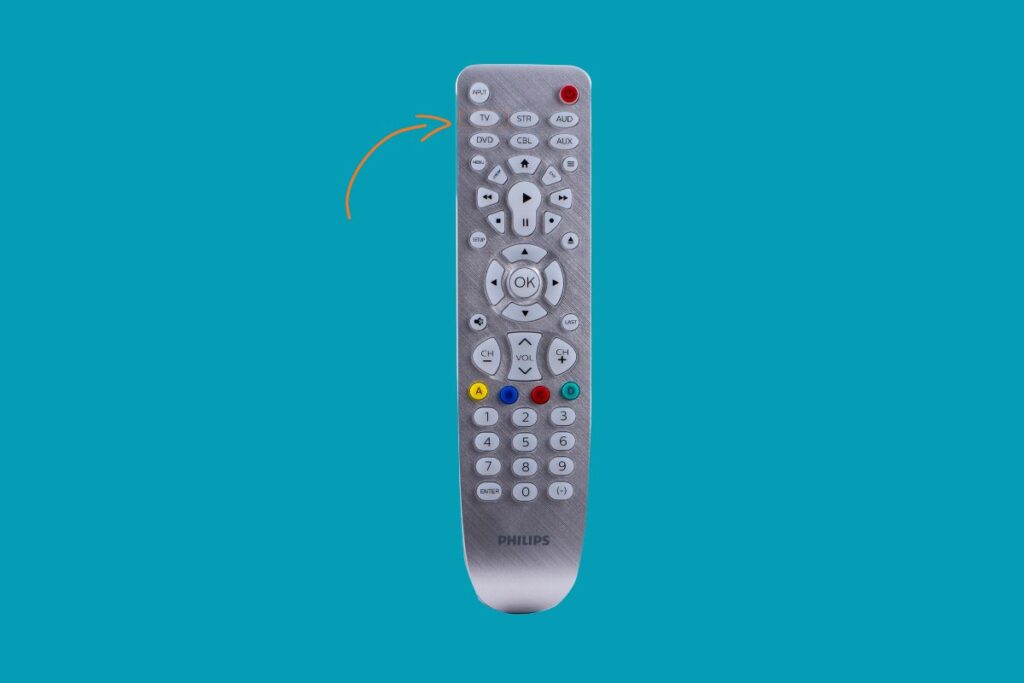
- Point the remote at your TCL TV and press the TV button.
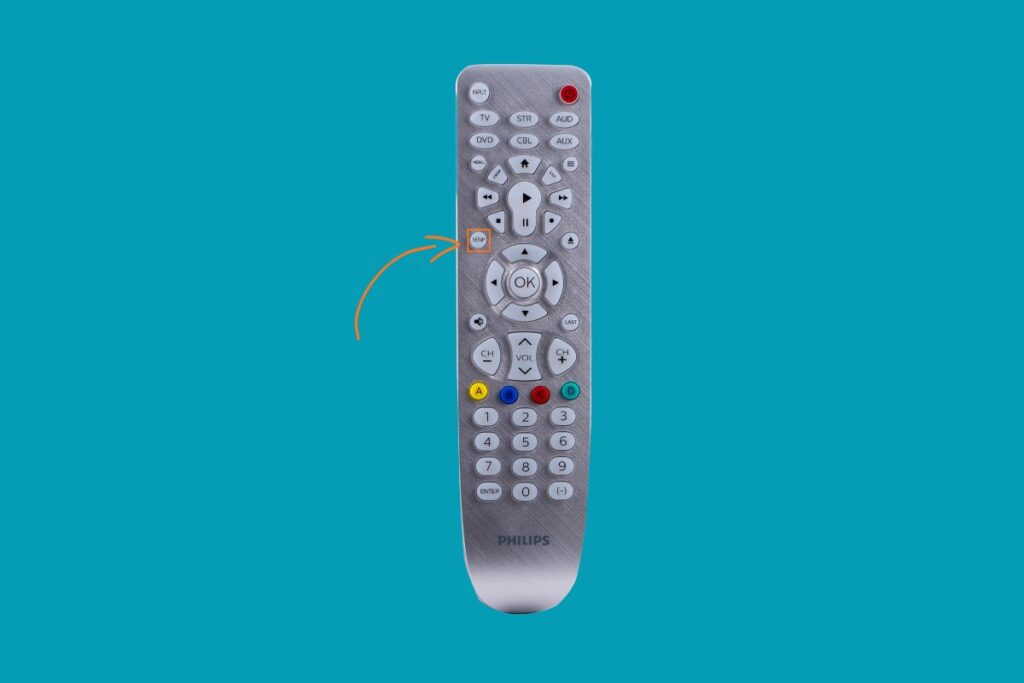
- Then press and hold the Setup button until the LED light blinks twice or stays lit. This means it’s ready to accept a code.
- Use the number pad to input one of the TCL universal remote codes.
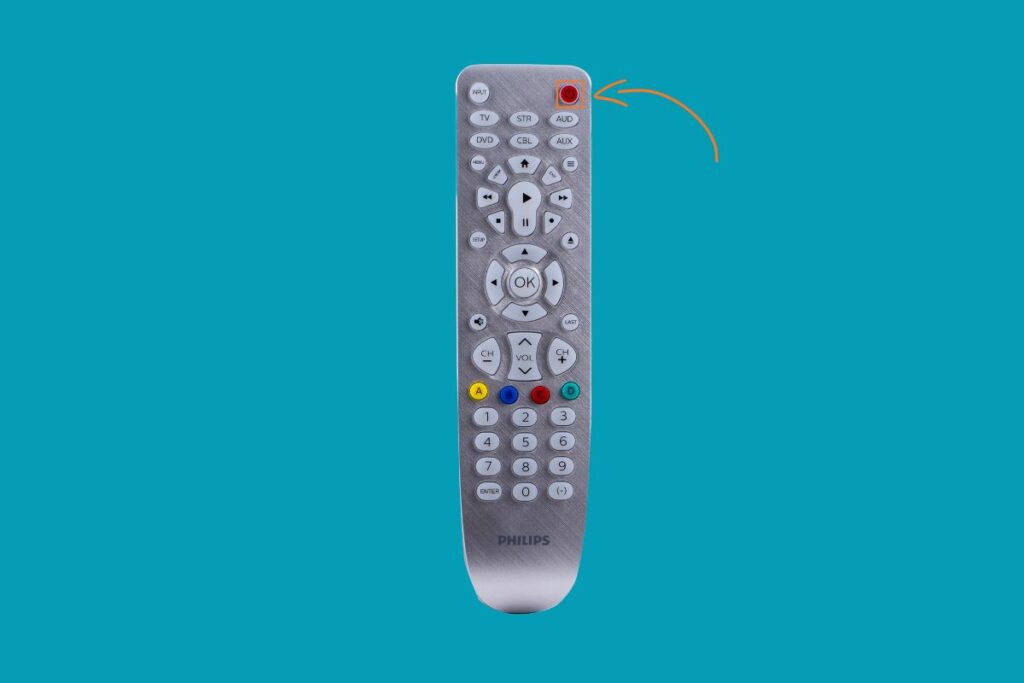
- After entering the code, press the Power button. If the TV turns off, the code works.
- Once successful, press the TV button again or Enter/OK to save the pairing. Your remote is now synced.
How To Program A Universal Remote To A TCL TV Without Codes?
Auto Code Search
This automatic method lets your remote scan all available TCL codes until it finds one that works.
- Turn on your TCL Roku TV.
- Hold down the TV button on your universal remote until the LED stays on.
- Press and hold both the Power and CH+ buttons simultaneously.

- Wait for the TV to respond. When the TV turns off, the correct code has been found.
- Press Enter or OK to save the code. Then turn the TV back on using the remote to confirm success.
Use A Virtual Universal Remote
If you prefer using your smartphone instead of a physical remote, you can control your TCL TV via a virtual or IR remote app.
- Install a trusted universal remote app from your device’s app store.
- Check for IR blaster. Ensure your phone supports IR (infrared). If not, choose the Smart TV or Wi-Fi remote option within the app.
- Launch the app, select your TV brand (TCL), and follow on-screen prompts to pair automatically.
- Once linked, try turning your TV on or adjusting the volume. No manual codes are needed.
FAQs
How can I tell if my remote has been successfully paired?
If pressing the Power, Volume, or Channel buttons controls your TCL TV, the pairing was successful. If not, repeat the process using a different code.
What should I do if none of the codes work?
Try other pairing methods, like the auto code search or the virtual remote app. Make sure your remote’s batteries are fresh and that it’s compatible with your TCL TV model. If nothing works, contact the TCL Support team for help.
Can I reset my universal remote if programming fails?
Yes. Most remotes can be reset by holding Setup for 10 seconds or following the factory reset instructions in your remote’s manual before retrying.
Is there a difference between IR and virtual remotes?
Yes. IR remotes send signals directly to your TV using an infrared emitter, while virtual remotes use your smartphone’s IR blaster or Wi-Fi connection to perform the same functions without physical buttons.
See More Universal Remote Code List For TV Types: