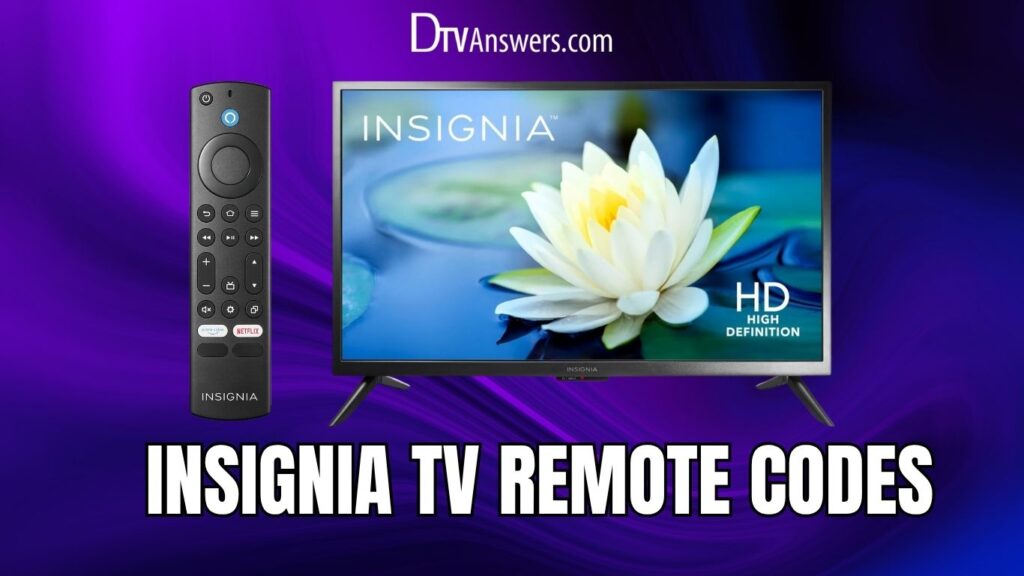
Dealing with a universal remote for your Insignia TV? No problem. Setting up a universal remote for your device can be quick and hassle-free when you follow the right steps. But first, let’s check out the compatible remote control codes for Insignia TV!
In This Article:
All Insignia Television Remote Codes
Here is a comprehensive table that lists popular universal remote control brands and their corresponding 3-digit, 4-digit, and 5-digit codes for Insignia TVs.
| Remote Control Brands | Remote Codes |
| Simplicity | 575, 564 |
| Motorola | 052, 164, 457, 454, 403, 400, 350 |
| Panasonic | 0178, 0317, 1564, 0457, 0054, 1517, 06, 07, 0171, 2002, 1326, 20, 1204, 2004, 18, 2003, 15, 0017 |
| Magnavox | 0103, 0074, 0091, 0069, 0120, 0040, 0094, 0130, 0089 |
| Terk | 10463, 11564, 10171, 14398, 11892, 12049 |
| Living Solutions | 073, 120, 127, 128, 114, 082, 105, 022, 046, 044, 126, 104, 091, 103, 074, 084, 071, 050, 069, 153, 081, 146, 109, 055, 080, 083, 125, 112, 096, 108, 117, 121, 118, 134, 061, 119, 078, 139, 140 |
| Sony | 01564, 168, 02002, 096, 02417, 01780, 068, 164, 01423, 02049, 00171, 02049, 01710, 10675, 100, 01204, 069, 12428, 229, 12596, 01892, 20288, 026, 01517 |
| All In One | 0116, 0029, 0091, 0133, 0150, 0103 |
| Clicker | 0315, 0149, 0178, 0113, 0147, 0310, 0063, 0124, 0292, 0150, 0186, 0203, 0297, 0052, 0153, 0154, 0191, 0200, 0301, 0221, 0127, 0076, 0100, 0099, 0173, 0148, 0065, 0112, 0307, 0142, 0078, 0172, 0156, 0069, 0184, 0194, 0250, 0020, 0152, 0128, 0224, 0129, 0294, 0163, 0310, 0075, 0221, 0190, 0188, 0115, 0113, 0182, 0249, 0097 |
| Philips | 0115, 0490, 0198 |
| GE (General Electric) | 2921, 2271, 0103, 0581, 1148, 1175, 1241, 4761, 0133, 0905, 0456, 3841, 1381, 0217, 2891, 1407, 5181, 1180, 0116, 3761, 0135, 09821, 0701, 1406, 1408, 0871, 4721, 5061, 2241, 0371, 1171, 0054, 1181, 4371, 3841, 0029, 0189, 5051 |
| Insignia | 11660, 11463, 13227, 11385, 11780, 14487, 12751, 11641, 12049, 12184, 11423, 11564, 12002, 11963, 11326, 11892 |
| Potenza ST | 0171, 1204, 1517, 1963, 1326, 2002 |
| RCA | 11423, 12049, 11810, 11963, 12417, 12184, 135, 10171, 10463, 11564, 11892 |
| Aconcagua | 0180, 0030, 0178, 0179, 0017, 1463, 0236, 0054, 0092, 0150, 0156, 0463, 0171 |
| MasterControl | 350 |
| Samsung | 49, 09, 07, 03, 46, 02, 08, 16, 17, 00, 18, 60, 01, 04, 40, 15, 98, 59, 43, 05, 06, 47, 48 |
| Bose | 11641, 10171, 11564, 11326, 11517, 12002, 11204 |
| RadioShack | 511, 038, 272, 417, 477, 252, 173, 228, 290, 420, 253, 381, 238, 307, 325, 505 |
| Momentum | 354, 345 |
| Innovage | 001, 004, 045, 038, 009, 000, 035 |
| Flipper | 1241, 0371, 2271, 2321, 2471, 2241, 1381, 2921, 0701, 0871, 2891 |
| X10 | 027, 014, 047, 059, 134, 021, 017, 137, 184, 090, 036, 043, 040, 022, 056, 176, 210, 164, 038, 129, 088, 089, 196, 060, 044, 087, 081, 090, 050, 101, 096, 190, 062, 048, 045, 025, 046, 095, 137, 057, 165, 052, 137, 139, 174, 039, 189, 049, 137, 053, 164, 167, 197, 134, 137, 055, 058 |
| One for All | 0103, 0135, 1204, 0456, 0054, 0116, 0029, 0217, 1780, 2049, 0189, 0133 |
| PCGuide 4-Digit Codes | 0029, 0116, 0456, 0103, 0217, 0135, 0189, 0167, 0133 |
How To Program Insignia Universal Remote Using Codes
Follow the programming guide below to pair the remote effectively using a valid code from the code list above:
Step 1
Ensure that your Insignia TV is turned on before you begin the programming process. This will allow you to test the remote’s response immediately after entering the code.
Step 2
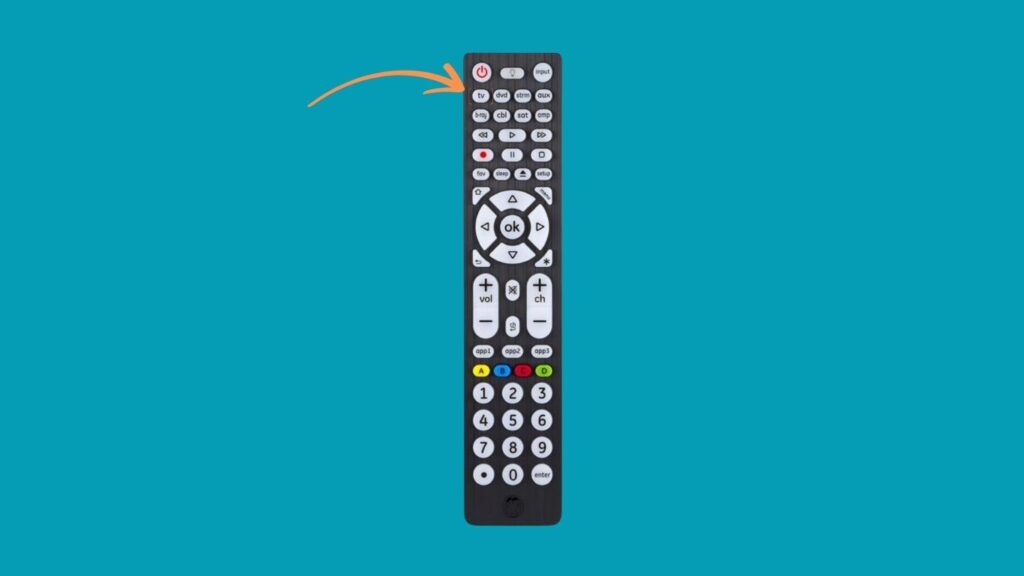
Identify and press the TV button on your universal remote. This tells the remote which type of device you’re programming it for. Hold the button briefly until it is selected.
Step 3
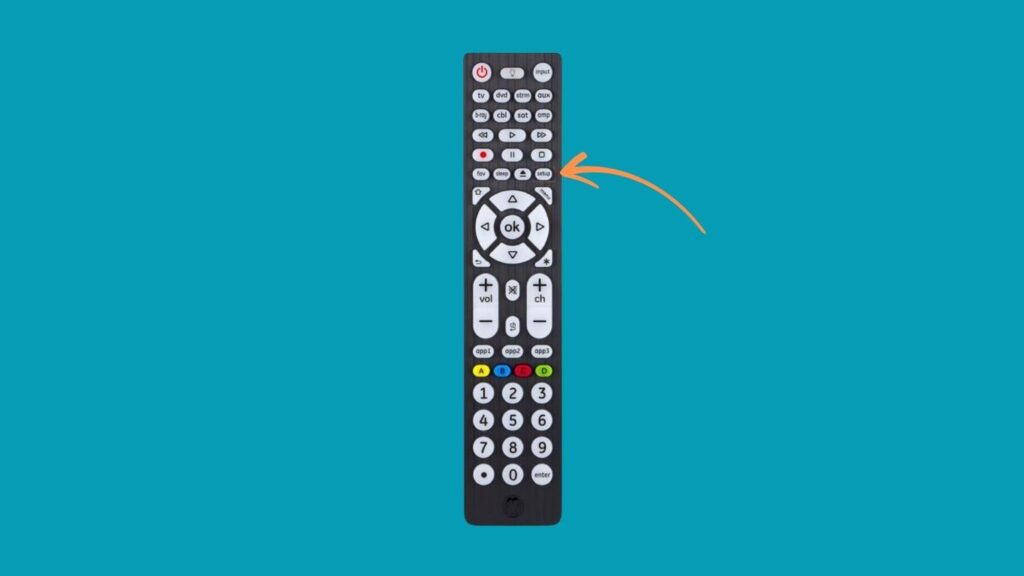
Press and hold the Setup button on your universal remote control. Continue holding it until the LED light on the remote blinks or stays lit. This indicates that the remote is now in programming mode and ready to accept codes.
Step 4
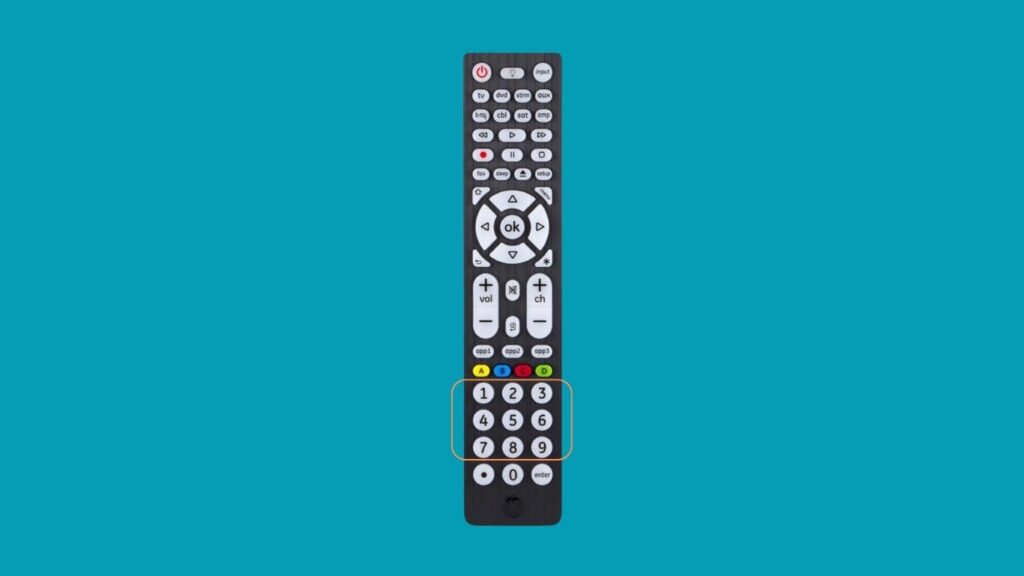
Refer to the list of popular codes above (e.g., 12049, 11780, 11641, etc.), and input one of them using the number keys on the remote. The LED light should blink or turn off after a successful entry.
Step 5
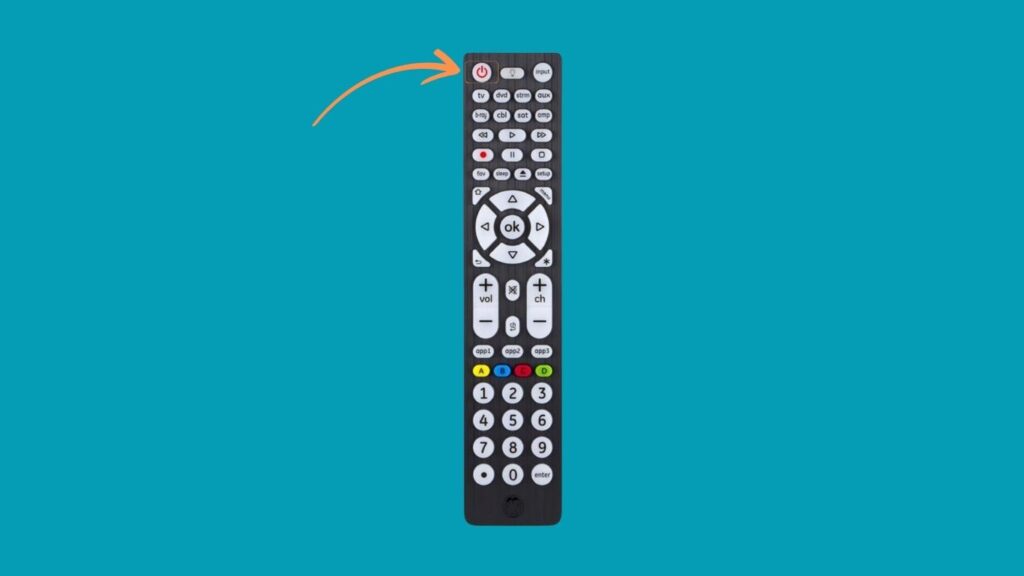
Point the remote toward your TV and press the Power button. If the TV turns off, the programming is successful. If it doesn’t, repeat the process using another one from the list of common codes until you find the correct one.
Step 6
Once the correct code is found and your TV responds, press the TV button again or the Setup button (depending on your remote model) to save the code. The LED light should blink twice, indicating the code has been stored.
Final Tip
If none of the codes work, double-check the remote brand and model, as some remotes require specific code sets. You may also try using the auto-search method as a fallback option.
Insignia TV Remote Programming Without Codes
If you don’t have access to the specific Insignia TV universal remote codes, don’t worry. You can still sync your remote using the auto code search method:
Step 1
Before starting the programming process, turn on your Insignia TV.
Step 2
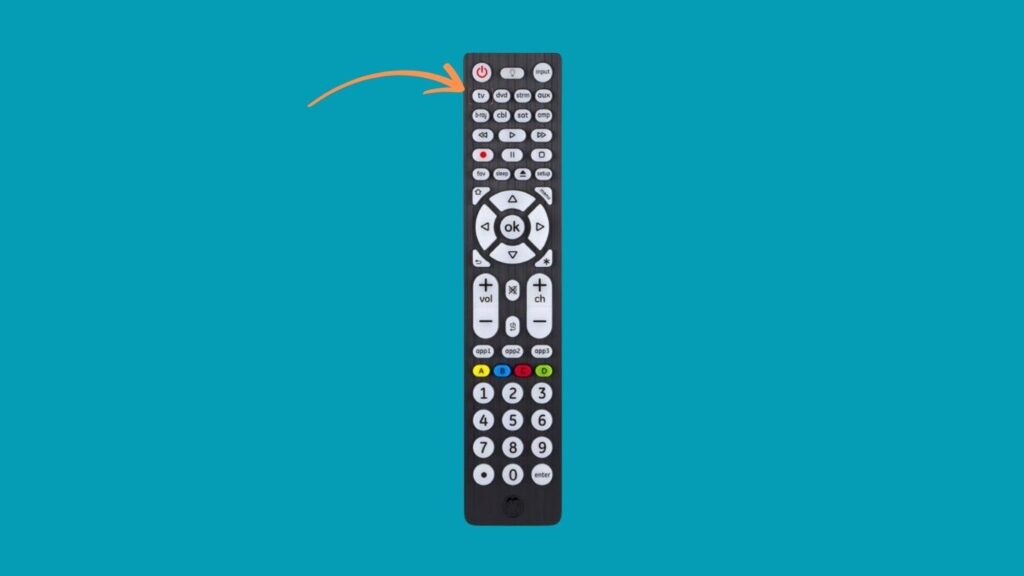
On your remote control, press and hold the TV button (or the corresponding device button if you’re programming for a different device).
Hold it for about 5–10 seconds until the LED light on the remote stays solid or begins blinking steadily. This indicates the remote is now in programming mode.
Step 3
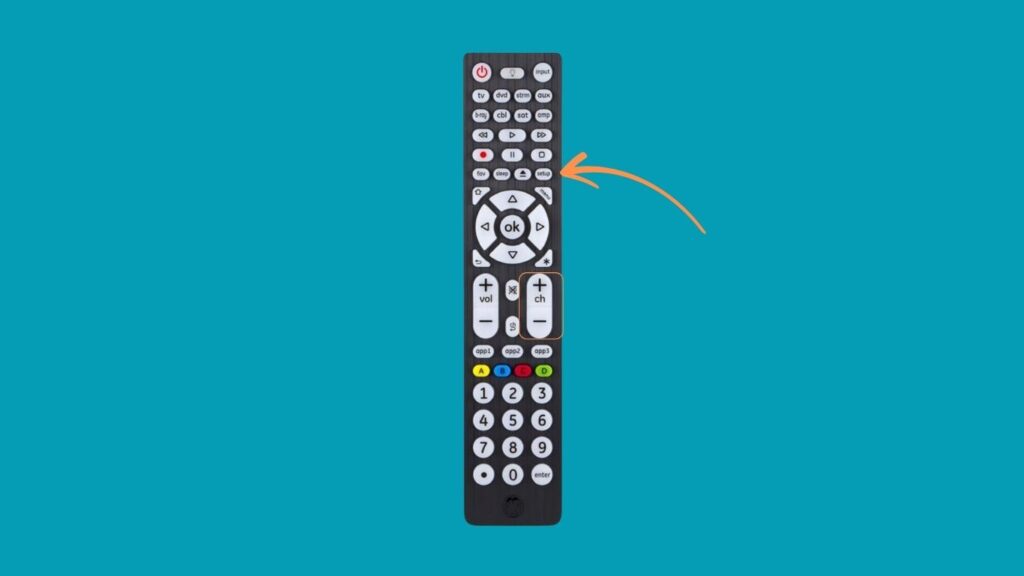
While pointing the remote directly at your TV, press the CH+ (Channel Up) and CH− (Channel Down) buttons one at a time or alternately. Continue this process slowly and patiently. Each press sends a different code to the TV.
If the TV turns off or displays a response (like volume change), the correct code has been found.
Step 4
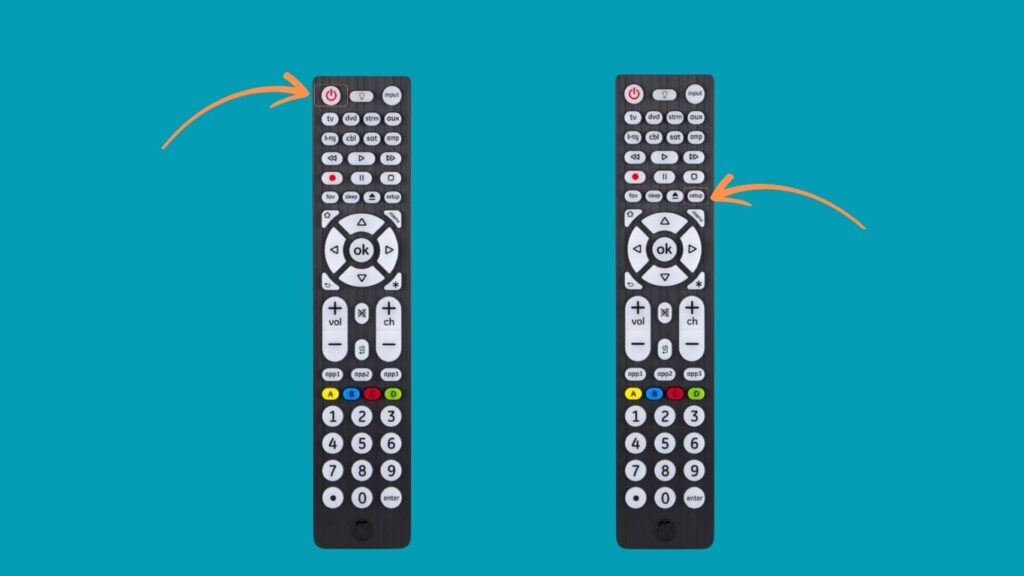
Once your TV reacts (such as powering off), press the Power button to turn it back on and confirm the pairing worked. Then, to finalize the setup, press the TV button again or the Setup button, depending on your remote model. The LED light should blink twice, indicating that the code has been saved.
Step 5
After saving the code, test basic functions like volume control, input source selection, and channel navigation to make sure everything works correctly. If only some buttons work, you may need to repeat the process to find a more compatible code.
See More Universal Remote Code List For TV Types: