Your Hisense TV won’t turn on, and the red light blinks all of a sudden. Seeing this can be stressful, especially when the screen stays dark. Don’t worry! Those blinks are actually clues. Each pattern tells you what’s wrong inside your TV. Let’s decode those blink codes and walk through simple fixes you can try yourself!
In This Article:
Why Is My Hisense TV Flashing Red?
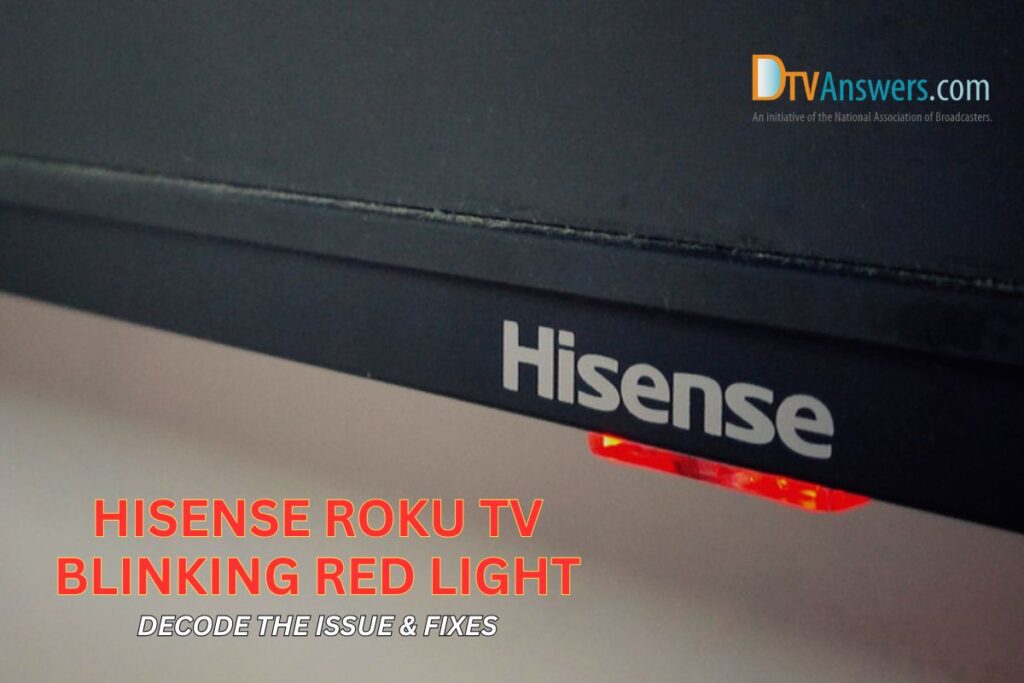
Your Hisense Roku TV’s blinking red light is a built-in error signal. Each pattern, like one blink, two blinks, three, and so on, points to a different issue, such as a power board fault, backlight failure, or mainboard problem. You can count the blinks to find the cause.
- 1 Blink – Normal Standby mode: One blink simply means your TV is in standby mode. It’s waiting for you to press the power button on the remote or the TV itself. This is normal and not a problem.
- 2 Blinks – Power or network issue: Two blinks often mean a power or minor mainboard problem. It can also happen when the TV has trouble connecting to Wi-Fi or when the power board starts to fail.
- 3 Blinks – Backlight problem: If the red light flashes three times, the backlight inverter may be broken. Sometimes it’s a capacitor or internal circuit issue.
- 4 Blinks – Wiring or T-Con board fault: Four blinks suggest damage to the backlight inverter wiring or the T-Con board, which processes video signals.
- 5 Blinks – Mainboard failure: Five flashes usually mean a serious mainboard malfunction. The mainboard manages all internal communication, so this issue can stop your TV from turning on.
- 6 Blinks – Cooling or T-Con problem: If your Hisense TV red light blinks 6 times, your TV may be overheating or have a faulty T-Con board.
- 7 Blinks – Internal circuit damage: Seven flashes point to issues within the LED backlight system or internal circuits.
- 8 Blinks – Hardware or cable error: Eight blinks usually mean a loose cable or a damaged component inside the TV.
- 10 Blinks – Power or LED driver failure: Ten flashes mean the power board, LED driver, or mainboard might have failed.
How To Fix A Hisense Roku TV Flashing Red Light?
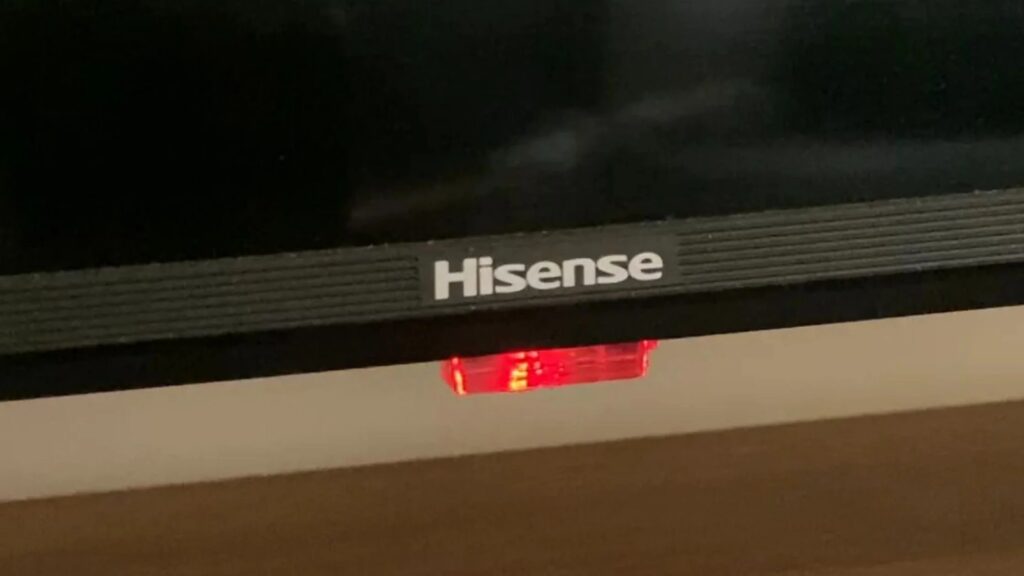
If your Hisense TV flashes on and off, try restarting the TV, checking the cables, and updating the software. If that fails, try a soft or factory reset. For deeper issues, inspect internal parts or contact Hisense support. Always unplug your TV before you begin.
Check Cables And Connections
A loose or damaged cable can make your TV think something’s wrong with its internal system.
Steps:
- Unplug the TV from the power source.
- Disconnect all connected devices, like streaming sticks, soundbars, consoles, etc.
- Inspect each HDMI and power cable for bends, breaks, or loosened pins.
- Plug the cables back in securely, one by one.
- Turn on the TV after each reconnection to see if the blinking stops.
Restart the Hisense Roku TV
Sometimes your TV just needs a quick refresh to clear up temporary power, small software bugs,or memory issues that trigger the blinking red light.
Steps:
- Use the remote or press the power button on the TV to turn it off.
- Unplug the TV from the wall outlet.
- Wait for at least 60 seconds. Don’t rush this part.
- Plug it back in and turn the TV on.
Soft Reset the TV – Power Cycle
When our Hisense Roku TV wouldn’t turn on and kept blinking red 5 times, we reached out to Hisense customer support. Here’s the exact power cycle process they guided us through, and it worked like a charm:
Steps:
- Unplug everything. Disconnect your TV’s power cord from the wall socket. Also, unplug any attached devices such as a Fire TV Stick, game console, or soundbar.
- Plug off the TV. While the TV is unplugged, press and hold the power button on the TV itself (not the remote) for about 60 seconds, then release it. The button is often found on the lower front edge or back panel.
- Let it rest. Keep the TV unplugged for around 10–15 minutes to allow all residual charge to clear.
- Reset your internet devices. Unplug your router and modem for about 7 minutes, then plug them back in and wait an additional 5 minutes to fully restart.
- Reconnect power directly to the wall. When it’s time to reconnect your TV, plug it straight into the wall outlet—avoid using a surge protector or power strip for this test.
- Turn it on manually. Press the power button on the TV (not the remote) to see if it starts up normally.
Use Different HDMI Ports
Sometimes the HDMI input itself is the problem. A shorted or loose HDMI port can cause the TV to enter protection mode.
Steps:
- Unplug all HDMI devices.
- Plug one device into a different HDMI port.
- Power on the TV and see if the red light stops blinking.
- If it does, the original port might be faulty. Avoid using that one in the future.
Update The TV Firmware
Firmware updates can fix bugs and compatibility issues that may cause the blinking.
Steps:
- Make sure your TV is connected to Wi-Fi.
- Press the Home button on your remote.
- Go to Settings → System → System update → Check now.
- Follow the prompts to install any available updates. After updating, restart your TV to ensure changes take effect.
Perform A Factory Reset
If none of the above steps stop the blinking, it’s time to reset your TV to its factory settings. This erases all saved apps and accounts, but it can clear deep software errors.
Option 1 – Using the Reset Button:
- Locate the small reset button on the back or side of your TV.
- Use a pin or paperclip to press and hold it for 5–10 seconds.
- Release when the TV restarts.
Option 2 – Using the Menu:
- Press Home → Settings → System → Advanced system settings.
- Choose Factory reset → Factory reset everything.
Check The Backlights
Note: If your TV is still under warranty, avoid opening it yourself and contact Hisense support instead.
Steps:
- In a dark room, shine a flashlight close to the TV screen.
- If you can faintly see images or the Roku home screen, the backlight is likely faulty.
- Unfortunately, this isn’t a DIY fix. You’ll need a technician to replace the LED strips or the inverter board.
Inspect The Motherboard (Advanced Users Only)
If the blinking continues, the issue might be inside the TV. This step is for those with some technical experience.
Steps:
- Unplug the TV and remove the back panel carefully.
- Check for burnt areas, swollen capacitors, or disconnected wires on the motherboard or power board.
- Replace any visibly damaged components if you have the expertise. Otherwise, stop and call a technician.
Contact Hisense Support
If you’ve tried every fix and the red light keeps blinking, it’s best to call Hisense Support.
Their team can guide you through warranty service or arrange a repair. Don’t open your TV if it’s still under warranty, which can void coverage.
Tips To Prevent The Hisense TV Power Light Blinking Issue
Regular maintenance, good ventilation, and safe power habits go a long way toward keeping your TV running smoothly:
- Keep the TV cool and well-ventilated: If it’s wall-mounted, make sure you’re using a sturdy, ventilated mount that allows airflow behind the TV. This can prevent overheating and blinking issues.
- Clean the vents and surface regularly: Use a damp (not wet) microfiber or lint-free cloth to gently clean the screen and outer casing. Focus on vent areas, especially along the back and sides. Avoid using strong cleaning agents.
- Use a quality surge protector: Always plug your Hisense TV into a reliable surge protector instead of directly into the wall.
- Keep your firmware updated: Outdated software can cause glitches, connection errors, or blinking codes.
- Unplug during storms or long vacations: If you’re leaving for more than a few days, unplug the TV completely. Lightning strikes and unstable power lines can damage the circuits even when the TV is off.
- Handle cables with care: Avoid bending, stretching, or pulling HDMI and power cords.
FAQs
Why does my Hisense TV have a red light but won’t turn on?
It’s likely stuck in standby or has a power supply issue. Try a soft reset first.
How long should I unplug my Hisense TV to reset it?
At least 60 seconds. This allows internal components to discharge.
Can overheating cause the red light to blink?
Yes. Poor ventilation can trigger temperature sensor errors, causing multiple blinks.
Should I open my TV if it blinks more than five times?
No. These codes often mean internal board failure. Get professional help.
Does the number of blinks mean the same for all Hisense TVs?
Mostly, yes. While models vary, more blinks usually mean a more serious fault.
See more: Hisense Roku TV universal remote code