If you own an Amazon Fire TV Stick, you’re probably wondering how long it’ll last before you need a new one. The truth is, while a Firestick can go bad, it’s impressively durable.
With the right care and maintenance, they can stream smoothly for several years before showing their age. Keep reading to explore its lifespan and tips to maintain it!
In This Article:
How Long Do Firesticks Last?
On average, an Amazon Fire TV Stick lasts between 2 to 4 years with normal use. Amazon also promises software security updates for at least four years after the device is last available for purchase on its official website.
That means even older Firestick models continue to receive updates long after they stop being sold. This is a strong sign of Amazon’s commitment to longevity.
For example, the second-generation Fire TV Stick, released in 2016 and sold until 2021, will keep receiving updates through 2025. That’s eight years of continued csupport, which is impressive for a compact streaming device.
Many long-term users also share positive experiences.
“I bought my Fire TV Stick four years ago, and it’s still going strong. It runs a little slower than before, and sometimes freezes when I switch apps too fast, but it’s never stopped working. For something I use every day, that’s pretty amazing.” A customer commented on Amazon’s website.
That kind of reliability shows why Firesticks remain one of the best value streaming devices you can buy.
How Can You Tell If A Firestick Has Gone Bad?
Here are a few clear signs that your Firestick may be reaching the end of its life:
- Slow performance or lagging: Apps open sluggishly, or videos take longer to load. Try restarting or clearing the cache first. If performance doesn’t improve, the hardware may be aging.
- Connectivity problems: Frequent buffering or poor Wi-Fi signals might mean the internal Wi-Fi module is wearing out. Try moving it closer to your router or use an Ethernet adapter. If issues continue, it’s likely time for a new Fire TV device.
- Crashing or freezing: Constant crashes, blank screens, or unexpected restarts, even after updates, suggest the processor or memory is struggling to keep up.
- Overheating: If your Firestick feels hot to the touch or shuts off during long sessions, overheating could be damaging its internal parts.
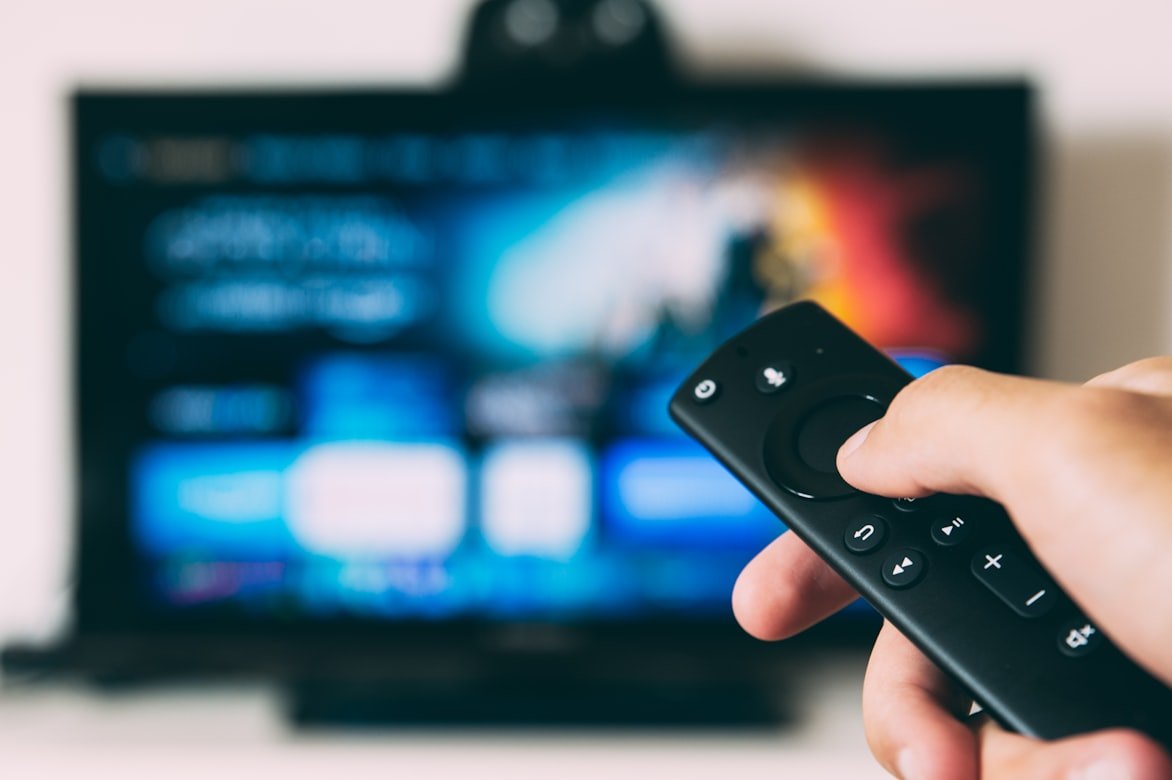
- Remote control issues: If replacing the batteries or resetting doesn’t help, the remote’s internal components might be failing. You can replace it or use a mobile remote app instead.
How To Prolong A Firestick’s Lifespan?
Keep It Cool and Ventilated
A Firestick works best when it’s kept at a place with stable temperature and good air circulation. Since it’s often plugged in behind the TV, heat can build up quickly without you noticing.
Pay attention to the device’s temperature. If it feels hot to the touch or starts freezing mid-stream, it’s a sign of overheating. Excessive heat shortens the device’s lifespan and can cause system errors.
What to do:
- Use an HDMI extender to position your Firestick away from the back of the TV for better airflow.
- Avoid placing it near walls or enclosed spaces.
- Unplug it when not in use for long periods. This allows it to cool down naturally.
Clear Cache Regularly
If your Firestick starts running slower than usual, takes longer to load apps, or frequently freezes, it may have accumulated too much cached data.
Clearing the cache removes temporary files that clog up storage and cause lag. Doing this once a month helps maintain smooth performance and prevents memory overload.
How to clear the cache:
- Press the Home button on the remote for Fire TV Stick.
- Go to Settings > Applications > Manage Installed Applications.
- Select the app you want to optimize.
- Click Clear Cache.
- Repeat for other frequently used apps.
Keep Software Up to Date
Software updates often include bug fixes, security patches, and performance improvements. Staying current ensures your Firestick runs efficiently and stays protected against vulnerabilities.
To check for updates:
- Navigate to Settings > My Fire TV > About > Check for Updates.
- If an update is available, select Install Update.
Let your Firestick update automatically whenever possible. It usually takes just a few minutes and helps extend its lifespan.
Use Only Trusted Apps
Installing third-party or unverified apps can harm your Firestick with malware or unstable code. This can cause crashes, performance drops, or even data theft.
Stick to the Amazon Appstore or other official app sources to keep your device safe and running smoothly.
Tip:
Disable the “Apps from Unknown Sources” option to avoid accidental installations.
Go to Settings > My Fire TV > Developer Options > Switch off Apps from Unknown Sources.
Ensure A Stable Internet Connection
A weak or inconsistent connection forces your Firestick to work harder, which can overheat the device and cause playback issues.
What to do:
- Keep your Wi-Fi router close to your Firestick.
- If possible, use an Ethernet adapter for a wired connection. It’s faster and more stable.
- Restart your router occasionally to maintain signal strength
Turn Off ADB Debugging
ADB (Android Debug Bridge) Debugging is meant for developers but can leave your Firestick more vulnerable if enabled. Turning it off adds an extra layer of security and helps keep your device stable.
To disable it:
- Go to Settings > My Fire TV > Developer Options.
- Select ADB Debugging > Off.
Avoid Excessive 4K Streaming
Streaming 4K or HDR content for long periods can generate heat and strain the hardware. Take short breaks between viewing sessions to allow the device to cool and stream in 1080p when possible. It still looks great and uses less processing power.
FAQs
Do Amazon Firesticks go bad?
Yes. Like any small streaming device, Firesticks wear down from heat and heavy use. Still, many users report their devices lasting 4 years or more with good care.
Can I use my Firestick after updates stop?
Yes, it will still work. However, without security patches, it may become more vulnerable, so avoid untrusted apps.
How long is the Firestick warranty?
Most Firesticks come with a one-year limited warranty.
Is there a trade-in option?
Yes. You can trade in your old Firestick for up to 20% off a new Fire TV device and even receive an Amazon gift card.
What if my remote stops working?
If new batteries don’t help, try resetting the remote or using a mobile Firestick remote app. It’s quick and works great as a backup.
See more: How To Log Out Of A Roku Account On TV?